
Support
Setup Steps Install


12. Check the App to make sure the camera has good reception and if not move the extender to a better location.
Installation Tips
See how some of our customers mounted their devices.
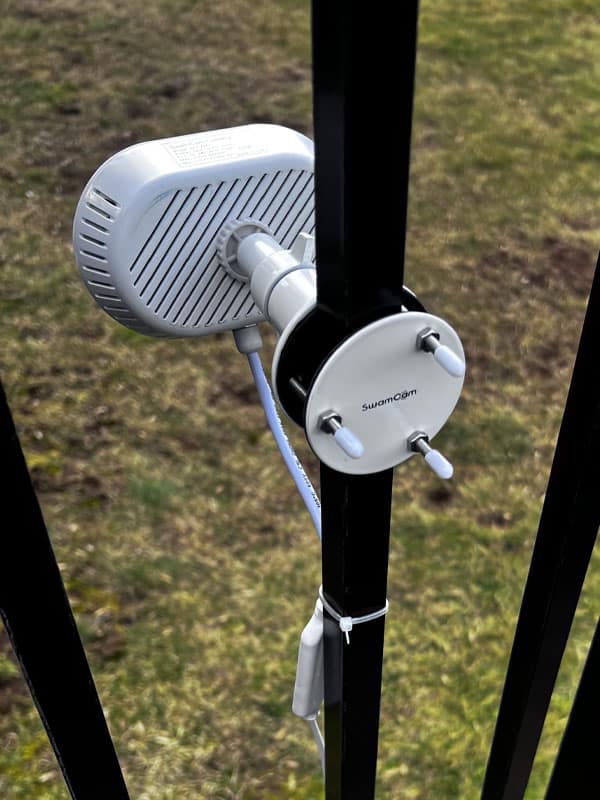
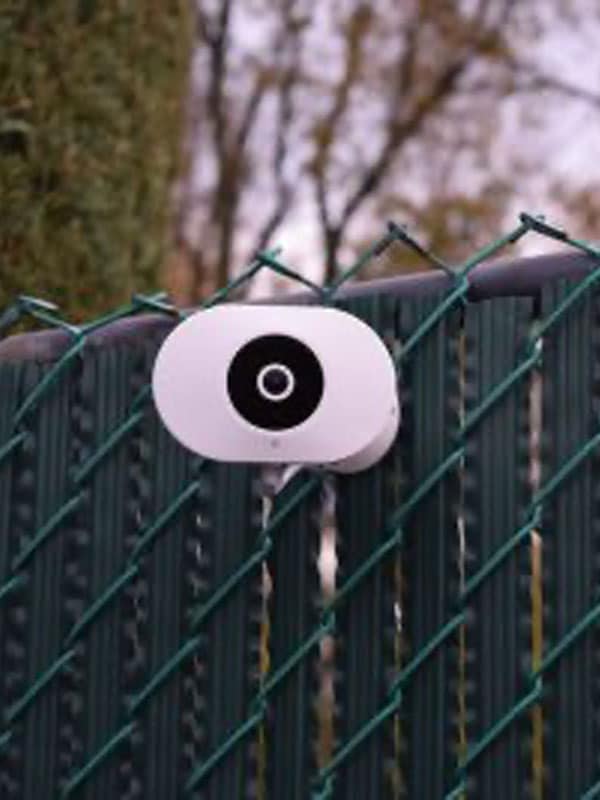
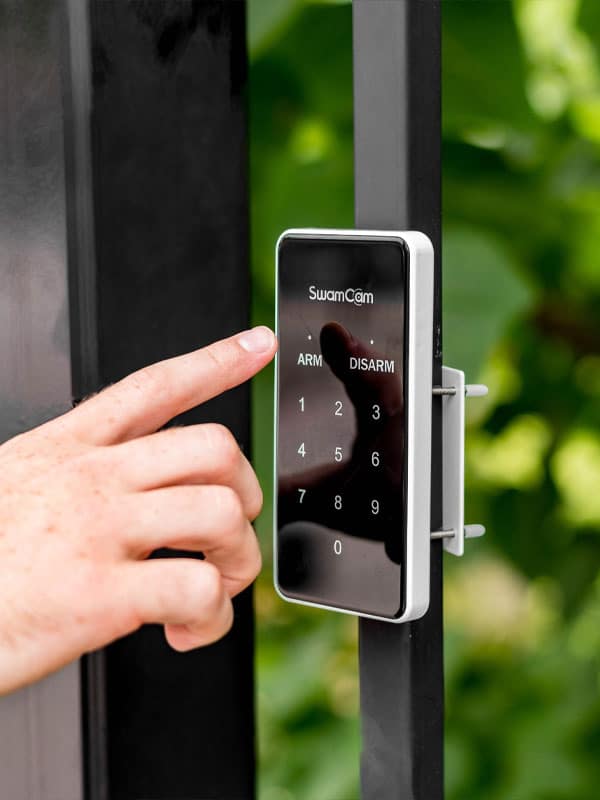
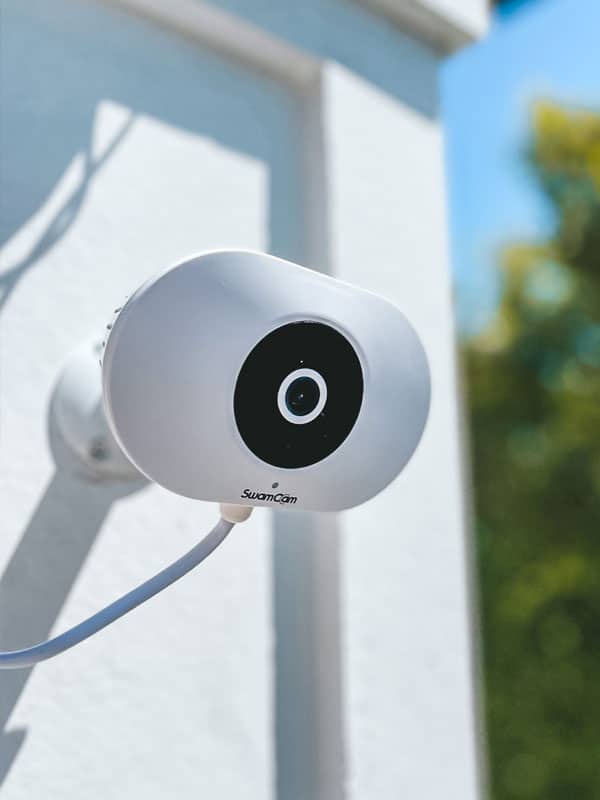
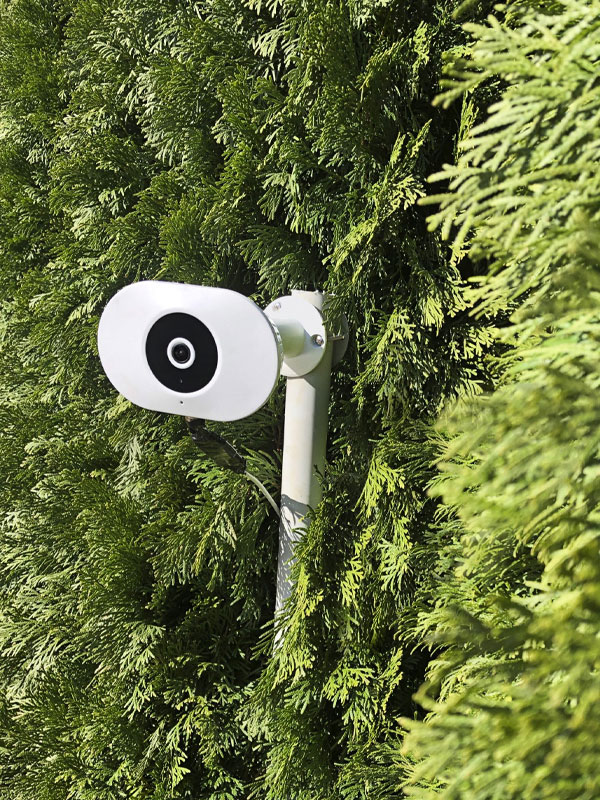
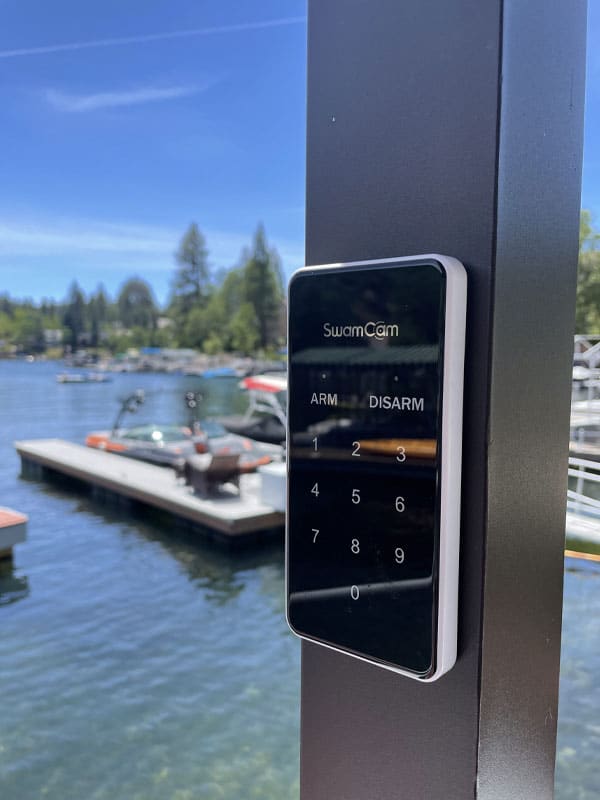
For local installers near you check out our Approved Installers page.
Troubleshooting Steps
Please update the software and the firmware to the latest before troubleshooting.
Initial Troubleshooting
- 1
If you are experiencing technical difficulty with the components, please do not reset the camera or remove the components from device information without consulting our support department or following the instructions below. You can reach us at (888) 679-2622 x 2, or email support@theswamcam.com
- 2
Please note that the components will retain programming when unplugged. You need not reset or remove anything if the system loses power.
- 3
If you need to change your WiFi please proceed as noted below.
Alarm/Repeater fails to add
- 1
Go to settings>device information and see if there is an alarm/repeater listed
- 2If so, swipe left or tap and delete
- 3Return to add devices, scan the QR code, but don’t “add” until you plug it back in and the alarm/repeater fully boots up.
- 4Be sure to add the alarm/repeater while setting up the camera INDOORS, NEAR THE HOME ROUTER.
- 5If the above steps fail, factory reset (using the provided reset tool in the bag of bolts, while the repeater is fully booted up, insert the tool into the pinhole in the bottom of the device until you hear “Factory Reset in Process”) the Alarm/Repeater and try again.
Camera offline
- 1
Confirm the camera has power. There will always be a status light on front if it does. If not, check the power cord.
- 2Bring the camera back indoors and confirm it works near the router
- 3Make sure the alarm/repeater was added properly to the system by checking settings>device information and confirming there is a line item for the alarm/repeater (if not, see Alarm/Repeater fails to add)
- 4If the repeater is properly added to the system and the camera is still offline intermittently, change placement for the repeater in the home, the repeater needs to overlap the home WiFi signal while still being able to broadcast out to the camera near the pool
Intermittent motion detection
- 1If the system is not detecting human motion make sure that the sun is not directly pointed into the camera lens, it will effect the motion detection capabilities
- 2Check settings>motion settings and view the detection area or customized detection zone (premium) and confirm you have captured the proper space in the zone
- 3
Be sure not to have the live view or motion detection zone screens open while testing. The system will not alert while you are streaming the video.
- 4Confirm the camera is not mounted with a corner tipped or canted up or down; the SwamCam needs a level horizon to look for that human movement

- 5Confirm the camera is mounted between 4-6 feet (approx) from the surface the people will be walking on. If the SwamCam looks down, let’s say from a high eave of a house, it will may not see the arms and legs needed for proper human motion detection
- 6The SwamCam Camera has an effective detection range of approximately 35 feet when operating under optimal conditions. Environmental factors—such as strong shadows, glare, or partial obstructions—may limit detection performance at distances less than 35 feet. Users should not rely on detection at the maximum range in all circumstances and should ensure additional safety measures are in place.
- 7If you’re having a problem not listed here or these steps do not work, contact support Monday through Friday 9am – 5pm EST. @ 888-679-2622×2 or support@theswamcam.com
Keypad Non-Responsive
- 1Change the batteries.
- 2Bring the Keypad close to the camera and test.
Change WiFi Networks
If you are switching networks or having technical issues you may try a full reset of the system.
Bring all the components indoors near the router or near the mesh node closest to the pool and power them all back up.
First, go into the app settings then device information and tap into on all the components and delete them from the app. (all the components, camera, repeater and keypad should be listed, if they are all not, the initial setup did not go correctly.) Always delete the camera last.
When resetting the SwamCam hardware, please perform the reset in the following order:
1. Reset SwamCam Keypad.
2. Reset SwamCam Alarm/Repeater.
3. Reset SwamCam Simple Alarm (if purchased)
4. Reset SwamCam Door/Window Sensors (if purchased)
5. Reset SwamCam Secondary Camera (if purchased)
6. Reset SwamCam Primary Camera.
Failure to reset in the proper order may result in difficulty in re-adding the components.
Resetting the camera:
1. When powered on and fully booted, Insert a small paperclip or provided reset tool (sim card tool) into the pinhole marked reset on the camera’s left side, you should feel a small button depress.
2. Push and hold the paperclip or provided reset tool (sim card tool) until you hear the voice prompts “Factory Reset in Process”, then release. The camera will reset to factory default settings.
Resetting the alarm/repeater
1. When powered on and fully booted, Insert a paperclip or provided reset tool (sim card tool) into the pinhole on the bottom of the alarm/repeater.
2. Hold the paperclip or provided reset tool (sim card tool) for a few seconds until you hear the voice prompt “Factory Reset in Process”, then release.
Resetting the keypad
1. Long press the “0” key for 5 seconds. When you hear a chirp (as opposed to the usual beep,) press “0” four times fast, “arm” will flash rapidly if the keypad is reset successfully
Now, re-perform the setup.
Return Policy
SwamCam return policy allows for products purchased directly from theswamcam.com to be returned during the initial 30 day period from date of receipt. We will refund the full purchase price paid minus any shipping, handling, import or export fees and costs.
To return your product under the return policy, please contact SwamCam either by phone (888)-679-2622 ext 1 or email sales@theswamcam.com.
Please note the following:
SwamCam return policy allows for products purchased directly from theswamcam.com to be returned during the initial 30 day period from date of receipt. We will refund the full purchase price paid minus any Shipping, Handling & Restocking Fee, Import or Export fees. For unopened boxes that are in perfect condition, we will refund the full purchase price paid minus any shipping, handling, import or export fees and costs. The returned item must be in the original SwamCam packaging, with all materials included.
For opened boxes, we will refund the full purchase price paid minus a minimum $25 restocking fee. All returns must be in new or like new condition. If the returned item is not in new or like new condition, we reserve the right to decline the return or charge additional restocking fees. We will not refund any shipping, handling, import or export fees and costs.
A SwamCam return authorization number (RMA) must first be obtained from our sales dept. as noted below. We will only refund you the purchase price; expedited shipping and handling costs are not refundable.
- The Buyer is responsible for all return costs; we recommend you insure the product for the original purchase amount. SwamCam is not responsible for lost items in return shipping.
- You will receive an email confirming the RMA number.
- SwamCam must receive the returned item within 14 calendar days after an RMA number has been issued and the unit returned must match the serial number specified in the RMA.
Return authorization numbers are valid for only 14 calendar days days from issuance. If the product is returned to SwamCam without a SwamCam return authorization number, and/or beyond the 14 calendar day period, and/or without proper packaging, SwamCam retains the right to refuse delivery of such return or may return the unit to you at your expense and with no refund issued.
Warranty
SwamCam devices come with a limited hardware warranty effective for 1 year from the date of purchase. Premium Subscriptions get 2 years from date of purchase. Please see our warranty details at https://theswamcam.com/terms-of-use/
If you’re experiencing any issues with your Swamcam, please click here to contact us.
Still Have Questions?
The SwamCam uses a cloud-based AI software to constantly review movement in areas within the field of view of the camera lens. When movement is detected, notifications are triggered to a smart phone App and an alarm is sounded on the camera and wireless speaker.
No, the SwamCam system is easy to set up and typically takes 30-40 minutes to complete installation.
Yes, as long as it has electric power. The devices use 2 different communication technologies to communicate. If your home WiFi is down, you will not get notifications on your phone, but the keypad and the alarms from both the extender and the camera will continue to work.
We accept returns on products bought directly on our website within 30 days from receipt. The items must be in new or like-new condition and repackaged. The buyer is responsible for return shipping and we advise the package be insured. We are not responsible for lost packages that do not have proof of delivery. You should contact customer service to obtain an RMA number prior to sending anything. No returns will be processed without an RMA.
You can have up to 6 of each accessory type; keypad, alarm, etc…